That’s usually achieved by implementing this way:
- add a column “mediatype” in your Airtable for each media with value “image” or “video”
- add both an Image Asset and a Video Asset in your experience
- based on the value of “mediatype”, show or hide the proper asset, using a binding on the visibility property pf each Asset and a custom converter that will return "True or “False” based on the “mediatype” value (image/video)
 The “lazy” trick: instead of having a single column “mediatype” and a custom converter with javascript, you can have 2 columns “isImage” and “isVideo” with values “True” or “False” and do a direct binding to Asset Visibility.
We have an article about this in Help Center. It’s based on static content but the principle is the same.
You can do it 2 ways:
- sort the items the way you want in Airtable for the view you are using
In the sample below, the view is named “Grid view” (on the left), you can apply filtering and sorting to it (on the right).
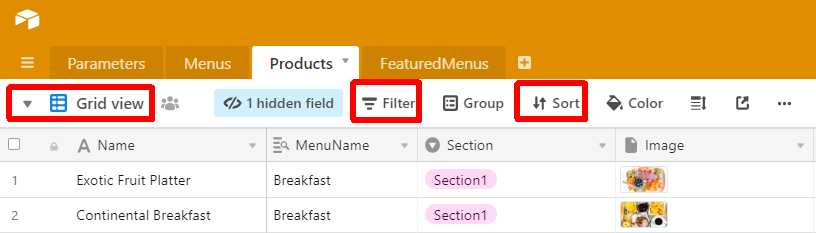
Then, when you send your request, add the query parameter view=“Grid view”
- the other option is to use Sorting directly in your request based on a specific column value, as explain in the dedicated Airtable article from Help Center (Chapter §. Sorting).
Regards,
Alex.